
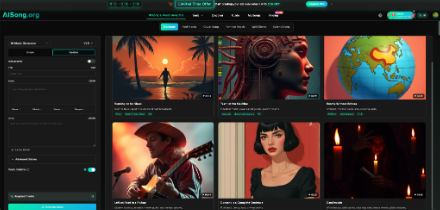
A USB drive full of audio can become messy quickly. One folder contains final tracks, another contains test versions, filenames say things like “song-new-final-2,” and a media player displays everything in an order that makes no sense. The real problem is organization before copying. If you create your own tracks with a service such as AI Song, the same rule applies: decide how you will name, sort, and export music before it reaches the USB drive, SD card, external drive, or local media library where you plan to keep it.
Decide What the Library Is For
An offline music collection should be organized around use, not around the order in which files were created.
A person making background tracks for videos has different needs from someone building a personal listening library. A teacher may want music grouped by classroom activity. A small shop may separate calm, upbeat, and seasonal tracks. A hobbyist may simply want clear artist-style labels and dates.
Write down the two or three ways you will most likely search later.
For example:
- by project,
- by mood or genre,
- by vocal or instrumental version,
- by finished versus experimental status.
Those categories should influence folder names and filenames from the beginning.
Use a Naming System Before You Download
Good filenames remove the need to open six files just to remember which one is which.
A practical format is:
project-purpose-style-version
A video creator might use:
coffee-launch-background-acoustic-v03
A teacher could use:
reading-time-calm-instrumental-v02
Consistency matters more than the exact format. Avoid naming one file by date, another by mood, and another by a random phrase unless those differences serve a purpose.
Also avoid using “final” too early. Creative projects have a strange habit of producing “final,” “final2,” and “final-real.” A version number is easier to sort and update.
When a track is genuinely approved, move it into a finished folder rather than relying only on the filename.
Generate Music With the Final Use in Mind
This AI Music Generator is most useful for an offline library when you create tracks for defined roles instead of accumulating random outputs.
AISong’s current guide describes a Simple Mode for broad song descriptions and a Custom Mode for users who want to provide lyrics or control song structure. That gives you two useful paths.
If you want unobtrusive instrumental music for a slideshow or local video playback, begin with the purpose, mood, and general style. If you are making a vocal track for a personal collection, lyrics and structure may matter more.
Do not create ten nearly identical tracks because generation is easy. Create a small set with clear differences. For example, make one relaxed version, one brighter version, and one stronger rhythmic version. Then keep only the versions you can imagine using.
A smaller organized library is more useful than a giant folder of forgotten experiments.
Separate Drafts From Keepers
Mixing every generated attempt with approved tracks quickly creates confusion.
Use two main folders:
- 01_Drafts
- 02_Keepers
Drafts can contain experiments, alternate versions, and tracks you are still comparing. Keepers should contain only files you would confidently play, edit into a project, or share with someone else.
Inside Keepers, organize by the category that matters most to you. A creator might use project folders. A family collection might use event or year. A media library might use genre and mood.
This simple split prevents a common problem: copying an entire generation history onto a portable drive when you only need five finished tracks.
Choose MP3 or WAV for the Job
AISong’s public guide currently lists MP3 and WAV download options, with WAV positioned for higher-quality editing and production use. Access can depend on the plan and current product settings, so check the interface when exporting.
For an offline library, the practical choice depends on what happens next.
- Choose smaller files for convenient listening
If the goal is casual playback on compatible devices, a compressed format such as MP3 is often easier to store and move because the files are smaller.
That can matter on a USB drive that contains hundreds of tracks or on older media players with limited storage.
Always confirm that the device you plan to use supports the audio format.
- Keep higher-quality source files for editing
If you expect to edit, mix, master, or archive a track, keep the higher-quality version available when your plan provides it.
You do not necessarily need to copy every large source file onto the portable playback drive. Keep an archive on your main storage and copy the listening versions separately.
This gives you a clean playback library without losing the better source material.
- Do not convert files repeatedly without a reason
Repeated conversions can create confusion and may reduce quality depending on the formats involved.
Keep one known source version and create other copies only for specific compatibility needs. Add a short suffix if necessary, such as -playback or -edit, so you know why the duplicate exists.
Check the Target Device Before Formatting or Copying
A music file can be perfectly fine and still fail to appear on a car stereo, television, game console, or older media player.
Before copying a large library, check the device manual or support information for two things: the supported storage file system and the supported audio formats.
The storage file system is how the drive itself is organized. FAT32, exFAT, and other systems are not audio formats. They determine how the storage device is structured and what systems can read it.
Do not format a drive just because a tutorial says one option is “best.” The correct choice depends on the device that needs to read it.
Formatting also erases data, so back up anything important first.
Prepare the drive as required, copy three or four representative tracks, and confirm they play correctly. Only then copy the full library.
Create a Folder Structure That Survives Different Screens
Computers can display rich metadata and long filenames. Small media players often cannot.
Keep the structure simple enough to understand on a tiny screen:
Music / Project / Track
or
Music / Mood / Track
Avoid six nested folders unless the playback device handles navigation well.
Numbering can also help. Prefixing major folders with 01, 02, and 03 keeps them in a predictable order on systems that sort alphabetically.
If the device ignores your preferred metadata, the filename becomes more important. A clear filename is a useful fallback when album art, tags, or other information does not display.
Maintain the Library Instead of Rebuilding It
Set one maintenance rule: new tracks enter Drafts first.
After a project or listening session, delete obvious failures, rename useful versions, and move approved files into Keepers. Once a month, or whenever the drive becomes confusing, remove duplicates and check whether folder names still match how you search.
Keep a backup of anything difficult to recreate or important to you. Portable drives are convenient, but they should not be the only copy of valuable files.
This is especially important if you continue generating new music. A clear library makes it easier to know what you already have before producing another similar track.
Conclusion
An offline music library stays useful when organization happens before the files reach the drive. Define how you will search, use consistent names, separate drafts from keepers, export the format that fits the next step, and test compatibility on the target device before copying everything. AI-generated music does not require a special storage system; it benefits from the same disciplined file habits as any other audio collection. Start with a small folder structure and a naming rule you can remember, then let the library grow without turning into a pile of mystery files.